

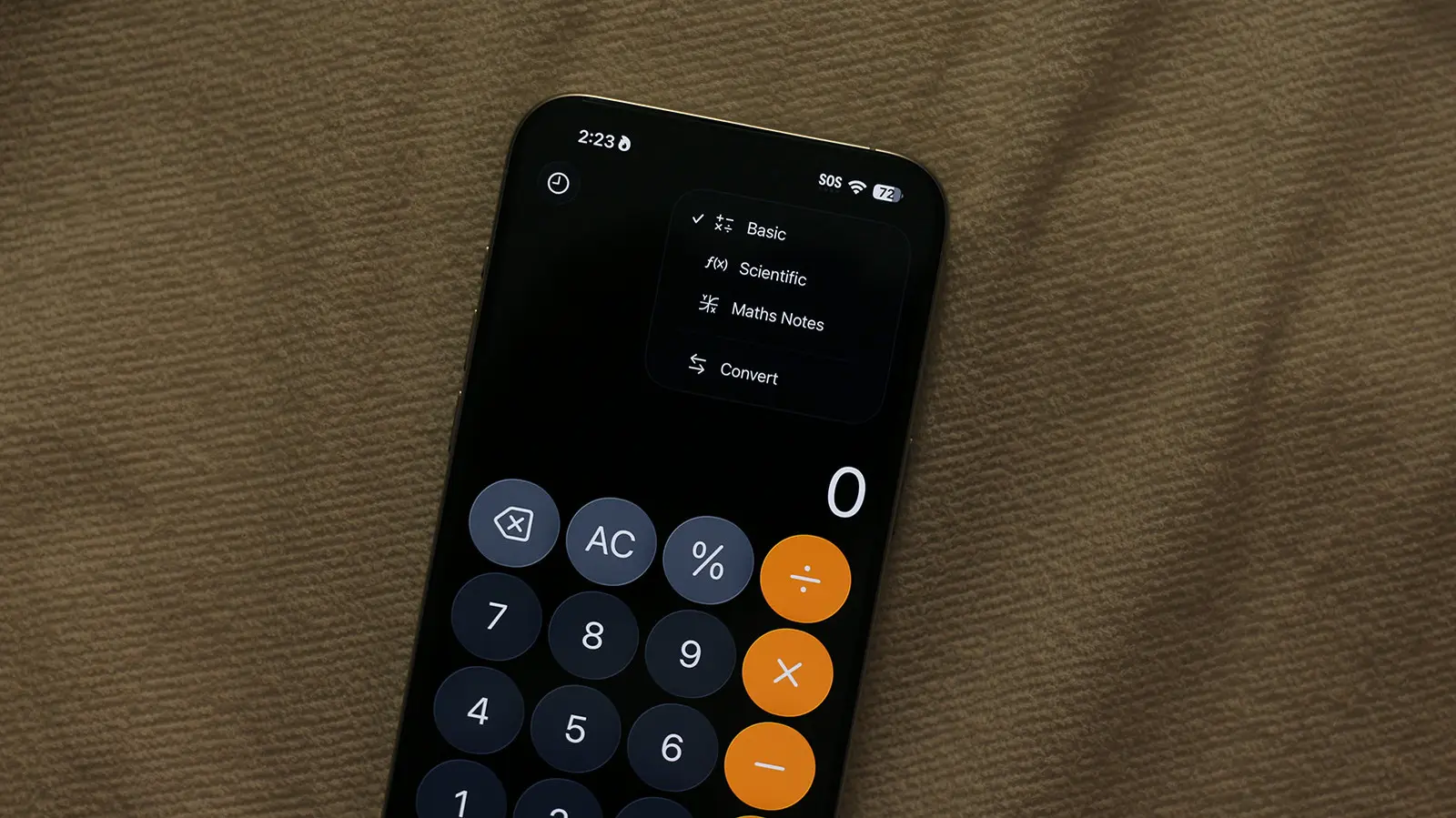
Without the App Store on iOS, we wouldn't be able to play exciting games or get great utility out of purpose-built apps. If there's anything you want your phone to do, it's likely a third-party app exists to do it. This is not to say that the iPhone's built-in apps aren't good — in fact, there's surprisingly a lot you can do with them. The calculator app, for instance, has a minimal user interface that places all the numbers and operators exactly where you'd expect. Previous calculations are saved in the history, and the app can also convert units or currency. You can switch to a scientific calculator, too.
As long as you're using the right order of operations, the calculator app on your iPhone can handle exponential, logarithmic, and trigonometric functions. Apple also lets you perform calculations in a more organized and dynamic manner through Math Notes, which was introduced in 2024. You can switch modes on your calculator app, including Math Notes, by tapping on the tiny calculator icon in the upper right corner. Alternatively, you can convert a regular note into a Math Note through the Apple Notes app.
Now, instead of solving calculations the traditional way, you can write equations in a more notebook-style format. This also means you can assign variables, solve chained calculations, or even mess around with graphs. If you utilize the feature enough, you can turn your iPhone into a mini math workstation for all kinds of scenarios.
Using Math Notes on iPhone
Math Notes is a feature available on iPhones running iOS 18 or newer. If you don't see the option to create a Math Note in the calculator or the Notes app, make sure your iPhone is updated to the latest version. While working in a Math Note, you can switch to the handwriting mode. This lets you write equations in a more natural way. Math Notes will solve an expression the instant you include an equal sign. You might also appreciate (or not appreciate as the case may be) how the result follows a similar font as your handwriting.
If there are any unsolvable expressions, Math Notes will highlight the error using a dotted red line. If you spot a dotted blue line, it means Math Notes was unable to decipher a character or number you've written. You can also calculate results using different systems — say, you want to add values of different currencies together — you can simply write "130 USD + 140 AUD =" and your iPhone will do the conversion on the fly and add them together. Math Notes are even saved in their own folder in the Notes app for quicker access.
Another way you can quickly calculate results or convert units is by typing an expression followed by the "=" operator in any app using your keyboard. As long as you have Math Results enabled in Settings > General > Keyboard, you should be able to perform quick calculations on your iPhone in any app.
Scientific Calculator Mode and Advanced Functions
The basic calculator app on iPhone is deceivingly simple. By rotating your device to landscape orientation (unless you have orientation lock on), the app transforms into a scientific calculator. This expanded interface adds buttons for trigonometric functions like sin, cos, tan, as well as logarithms, exponentials, and constants such as pi and e. You can also access memory functions to store and recall numbers. This feature has been available since the early days of the iPhone, but many users never discover it because they never rotate their phone. For students and professionals who need occasional advanced math, this built-in tool can eliminate the need for a separate graphing calculator app.
To use the scientific calculator effectively, ensure your device allows rotation. If you don't see the extra buttons, try turning your iPhone sideways. The interface will adapt, showing a full array of mathematical operators. You can also switch between degrees and radians by tapping the "Deg" or "Rad" button. This is crucial for trigonometry problems. The scientific calculator also offers a reciprocal function (1/x), factorial (x!), and the ability to raise numbers to any power (x^y). These functions make the iPhone calculator suitable for high school and college-level math courses.
Unit and Currency Conversion
One of the most practical hidden features of the iPhone calculator is its ability to convert units and currencies without needing a separate converter app. When you see a value displayed, you can long-press on the result to see conversion options. Alternatively, you can tap the "Convert" button (which looks like a small arrow) at the bottom left of the screen. This opens a conversion interface where you can choose from categories like Length, Weight, Volume, Temperature, Time, Speed, Power, and more. The conversion uses live exchange rates for currencies, provided you have an internet connection. This makes the calculator a handy tool for travelers, cooks, and anyone dealing with different measurement systems.
To convert a currency, simply input an amount, tap Convert, then select the source and target currencies. The calculator will automatically fetch the latest exchange rate. You can also add multiple currencies and convert them all at once. For unit conversions, such as converting miles to kilometers or Fahrenheit to Celsius, the process is just as seamless. The conversion history is saved, so you can revisit previous calculations. This feature is often overlooked but can save significant time compared to opening a separate app or searching online.
Graphing with Math Notes
Beyond simple equations, Math Notes on iOS 18 and later supports graphing. You can create a graph by writing an equation like "y = x^2" and then inserting a graph by tapping the graph icon or writing a specific command. This graph will be fully interactive: you can pinch to zoom, pan, and even tap on points to see coordinates. Multiple equations can be plotted on the same graph, each with a different color. You can also add sliders to adjust parameters in real-time, making it a powerful tool for exploring mathematical relationships. This feature is especially useful for students studying algebra, calculus, or data analysis. The graphs are saved within your Math Note, so you can refer back to them later.
To add a graph, type or write an equation that defines y as a function of x (e.g., y = 2x + 3). Then, tap the graph icon in the toolbar or simply write "graph" after the equation. The graph will appear inline. You can then drag to move the graph, and pinch to zoom. If you have multiple equations, they will all appear on the same coordinate plane. You can also adjust the range of the axes by tapping the graph settings. This functionality rivals some dedicated graphing calculator apps and is fully integrated into the Notes ecosystem.
History and Memory Functions
The basic calculator on iPhone has a history feature that shows your previous calculations. When you tap the clock icon at the top of the screen, a history panel slides up, displaying all past entries. You can tap on any entry to reuse it, or swipe left to delete it. This is incredibly useful when you need to review or audit a series of calculations. The memory functions allow you to store a number (M+ adds the current display to memory, M- subtracts, MR recalls, and MC clears). These functions are available in both basic and scientific modes, enabling complex multi-step calculations without losing intermediate results.
To use memory, simply perform a calculation, then press M+ to store the result. You can then continue with other calculations and later press MR to recall the stored value. This is particularly handy for accounting, budgeting, or any scenario where you need to track a running total. The calculator also has a backspace button (the gray arrow) that erases the last digit entered, reducing the need to start over if you make a typo.
Tips and Tricks for Power Users
There are several hidden tricks that can elevate your use of the iPhone calculator. For example, you can copy the last result by long-pressing on the display and selecting "Copy". You can also paste a number from the clipboard into the calculator. Another trick: if you swipe left or right on the display in the calculator app, it will delete the last digit one at a time — a more intuitive way to correct mistakes. Additionally, you can change the calculator's theme by going to Settings > Calculator, where you can choose between light and dark mode, or match the system theme.
For Math Notes, you can use variables to create dynamic calculations. For instance, you can define "x = 10" and then write "2x + 5 =" and Math Notes will show 25. Changing the value of x will automatically update all associated results. This makes it easy to explore "what if" scenarios. You can also use the Notes app to create a Math Note that includes text, images, and other elements alongside your equations. This creates a complete digital workbook that can be exported as a PDF or shared with others.
The calculator app on iPhone is also accessible through a Control Center button. You can add a calculator shortcut to Control Center by going to Settings > Control Center and adding the Calculator icon. This allows you to launch the calculator from anywhere, even from the lock screen. Finally, if you have an iPad, the calculator app on iPadOS includes all the same features plus a larger interface optimized for the larger screen. With the introduction of Math Notes, Apple has transformed a simple utility into a powerful mathematical tool that competes with dedicated apps.
Historical Context and Evolution
The iPhone calculator has come a long way since the original iPhone launched in 2007. Early versions only offered basic addition, subtraction, multiplication, and division, with no history. The scientific mode was introduced with iOS 2.0 in 2008, but it was hidden behind the rotation trick. Over the years, Apple gradually added features like copy/paste, unit conversion (iOS 14), and finally, Math Notes (iOS 18). The update in 2024 also brought the ability to graph equations, a feature previously only available in third-party apps. This evolution reflects Apple's commitment to making its built-in apps more capable, reducing the need for third-party downloads for common tasks.
The integration of Math Notes with the Notes app is a particularly clever move, as it leverages Apple's existing note-taking ecosystem. Users can now take math notes alongside regular notes, diagrams, and checklists. This seamless integration is a hallmark of the Apple ecosystem, where apps work together to provide a unified experience. The calculator's conversion features also benefit from live data, making it as accurate as any dedicated converter. As Apple continues to develop iOS, we can expect even more advanced features, such as possibly a full programming calculator or graphing support for complex numbers.
Practical Applications
Whether you are a student, professional, or casual user, the iPhone calculator can serve multiple purposes. Students can use Math Notes to solve homework problems, check their work, and visualize functions. Professionals in finance, engineering, or science can leverage the scientific mode and unit conversions to perform quick calculations on the go. Home cooks can convert recipe measurements instantly. Travelers can handle currency conversions without opening a separate app. The calculator is also great for everyday tasks like splitting bills, calculating discounts, or figuring out tip amounts.
One unique use case is using Math Notes as a variable explorer. For example, you could create a note that calculates loan payments based on different interest rates: define "rate = 0.05" and then write a formula for monthly payment. Changing the rate value updates everything automatically. This is much more efficient than using multiple separate calculations. Additionally, the graphing feature can help you understand the behavior of functions before an exam or presentation. The ability to add annotations to graphs within the note further enhances its utility for study guides.
In summary, the iPhone's calculator app is a versatile and powerful tool that goes far beyond basic arithmetic. By exploring its hidden features such as Math Notes, scientific mode, unit conversion, and graphing, users can unlock a mini math workstation that fits in their pocket. With regular updates from Apple, the app only becomes more capable over time. So next time you need to perform a calculation, avoid downloading a third-party app—your iPhone already has everything you need.
Source: SlashGear News