

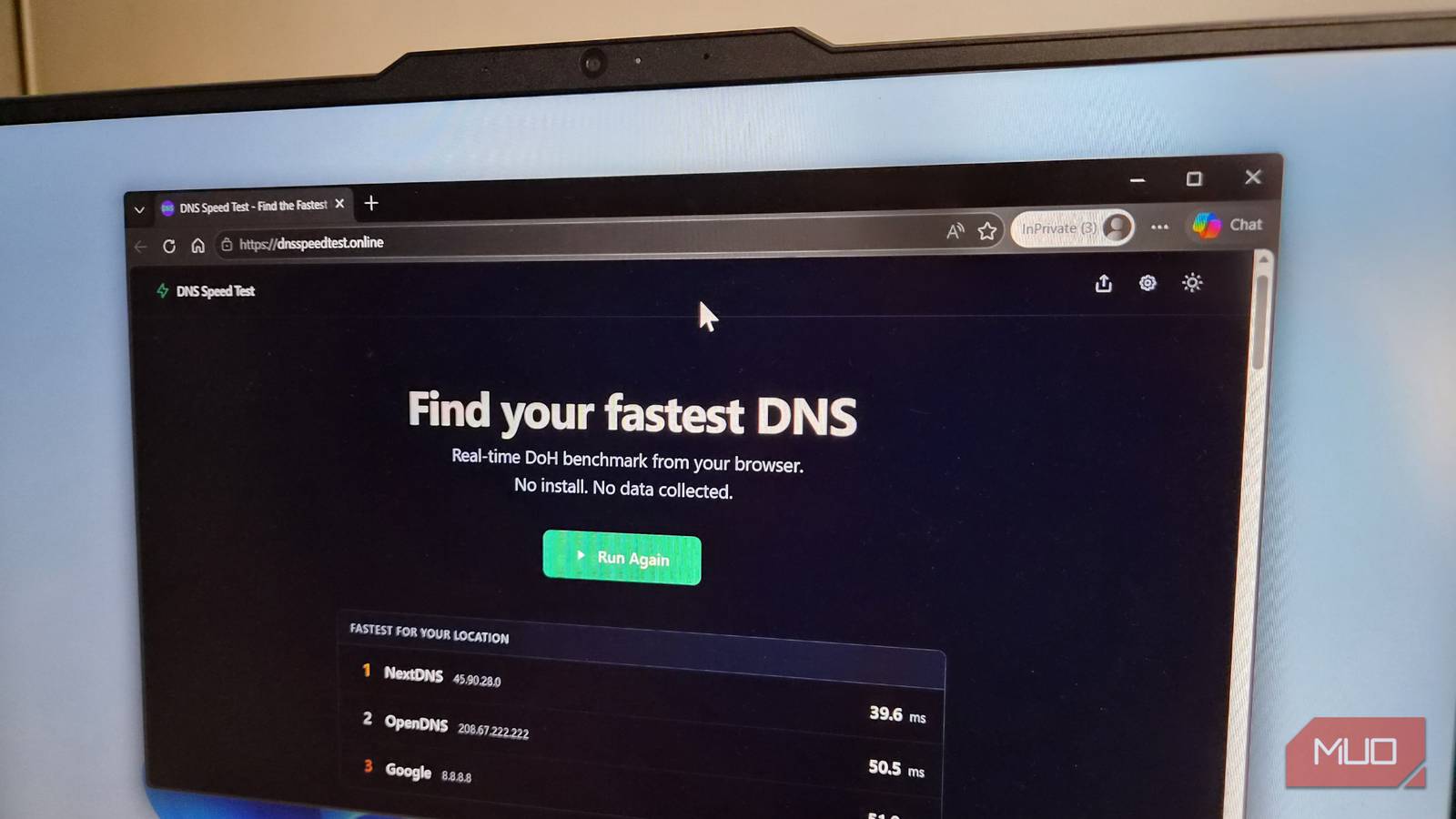
Your ISP's DNS is probably the weakest link in your connection right now, and there's zero reason to stick with it. But even if you know that, the bigger question is what DNS you should switch to because every option seems to market itself as the fastest and most private.
The honest answer is that no one can tell you which DNS is best for your connection. The only way to actually know is to test them yourself. That's exactly what I did, and the best DNS server wasn't the one I had been using for months.
The best DNS isn't the same for everyone
The fastest DNS for me might be the slowest for you
By default, your devices stick to your ISP's DNS server for translating website names into IP addresses. But the thing is, ISP-provided DNS servers are rarely good. And this isn't something you'll usually notice. The bigger issue is that those DNS queries are essentially what you browse. That means your ISP can easily log your internet activities and monetize that data.
That's why switching to a third-party DNS server is almost always better. There are plenty of good ones out there, like Google DNS, Cloudflare, Quad9, NextDNS, AdGuard, and ControlD. The catch is that there isn't a single "best" DNS server for everyone. DNS performance depends on a lot of things, like physical proximity to servers, how well a provider's network is peered with your ISP, and even time of day.
Cloudflare might be the fastest option for someone, while Google DNS or Quad9 might perform better for someone else. The reason is simple. A DNS with 50+ global nodes will behave differently depending on which node your traffic actually hits. So yes, the "best" DNS for me won't apply to you, and vice versa. The only reliable way to pick a DNS is to test it on your own device and network.
To understand why DNS performance varies, it helps to know how DNS resolution works. When you type a website address into your browser, your device sends a query to a DNS server to look up the corresponding IP address. That server may have the address cached, or it may need to query other servers up the chain. The speed of this process depends on the distance between you and the server, the server's load, and the efficiency of its network routing. Even factors like the time of day can affect congestion on both your ISP's network and the DNS provider's network. This is why a DNS that is blazing fast at noon might be sluggish during peak evening hours when everyone is streaming video.
Moreover, not all DNS providers have the same infrastructure. Some, like Google Public DNS and Cloudflare, maintain massive global networks with hundreds of points of presence. Others, like Quad9, operate fewer but strategically placed servers. The geographical proximity of these servers to your location is a major factor in latency. If you're in Southeast Asia and the DNS provider's nearest server is in Europe, your queries will naturally take longer than if they were handled by a server in Singapore.
DNS Speed Test found the best server for me in under 30 seconds
No need to install anything
There's no shortage of DNS benchmarking tools, but most of them either require an installation or spit out raw numbers that can confuse you even more. And that's exactly why I like the DNS Speed Test tool. It's a free browser-based tool that tests popular DNS servers from your current network.
It fires several DNS queries to each server and measures how long they take to respond. It even runs a warm-up phase before timing each server, so the results reflect actual everyday performance. The whole thing takes around 30 seconds or less, and when it's done, it shows you the top three DNS providers for your setup.
You can then scroll down and see how other DNS servers have performed. You'll see the minimum, maximum, median, and average speeds of each DNS provider so you can pick the one that's not just fast but consistent. The most important thing here is that you shouldn't just run the test once and commit. As I said earlier, DNS performance can vary depending on the time of the day. So run this test at different times of the day to factor in network congestion.
You can even customize this test. By default, DNS Speed Test queries popular sites like Google, YouTube, ChatGPT, and Reddit. These are sites that most DNS providers actively cache to make their numbers look better. If you want the most accurate picture, edit that list to include domains you actually visit on a daily basis.
There are other benchmarking tools worth mentioning. For example, GRC's DNS Benchmark is a classic Windows utility that tests a wide range of DNS servers and even compares them side by side. Namebench is another open-source tool that was popular in the past, though it's no longer actively maintained. On macOS, you can use command-line utilities like dig and ping to manually test response times. However, all these require downloading software or running scripts. The beauty of DNS Speed Test is its simplicity: it runs entirely in your browser using JavaScript, no installation needed, and it works on any operating system.
When testing, it's also smart to run multiple tests over several days. Network conditions vary, and a single snapshot can be misleading. For instance, I once found Cloudflare to be the fastest on a Tuesday morning, but by Thursday evening, Quad9 had taken the lead. By averaging results from three or four runs at different times, you get a more reliable picture of which DNS performs best on your network.
Speed isn't the only thing to look for when picking a DNS
Some DNS servers do a lot more than resolve requests
Speed is important when picking a DNS server, but it shouldn't be the only one you look at. That's because most third-party DNS servers do more than simply resolve requests.
For instance, Quad9 is known for its security features. It checks every request, so if you accidentally click a phishing link, there's a good chance Quad9 will block it. And it's private too, so you don't have to worry about misusing your data. Cloudflare is another DNS with a no-logs policy as its main pitch.
NextDNS promises a bit of both and also gives you a detailed dashboard that shows what's getting blocked and what apps are trying to contact trackers. AdGuard DNS is popular because it comes with an ad and tracker blocker baked in, and it works quite well. CleanBrowsing is a great option for families because it blocks adult sites and forces Google and YouTube SafeSearch at the network level.
The point is, once you've narrowed down a few DNS providers that work well on your network, you should also look at what they offer. Also, not every DNS is free like Google DNS is. Some, like NextDNS, only offer a limited number of queries on the free plan and then stop working. So yes, it's better to factor all of this before you actually go through the hassle of changing DNS providers on your devices or the router.
Let's dive deeper into the security and privacy features. Quad9 operates a threat intelligence platform that blocks known malicious domains based on data from over 20 cybersecurity partners. This makes it an excellent choice for users who want basic protection without installing any software. Cloudflare, on the other hand, emphasizes privacy with a strict no-logs policy, meaning they don't record your IP address or query history. They also support DNS-over-HTTPS and DNS-over-TLS to encrypt your queries, preventing eavesdropping by ISPs or other third parties.
NextDNS offers granular control: you can create custom blocklists, set parental controls, and view analytics on all queries. It also has a free tier that handles 300,000 queries per month—enough for a typical household. If you exceed that, you can upgrade to a paid plan. AdGuard DNS works similarly but focuses specifically on blocking ads and trackers. It's particularly useful if you're tired of seeing pop-ups and want to speed up your browsing by removing unwanted content. CleanBrowsing's family filter adds an extra layer of safety by blocking adult content and enforcing SafeSearch, making it ideal for protecting children.
Another factor to consider is compatibility with advanced protocols. Many modern DNS providers support DNSSEC (Domain Name System Security Extensions), which authenticates responses to prevent cache poisoning attacks. If you're concerned about security, look for providers that offer DNSSEC validation. Additionally, some providers offer DNS-over-HTTPS or DNS-over-TLS, which encrypt your queries and prevent anyone from tampering with them. Most operating systems and browsers now support these protocols, so it's worth enabling them for extra privacy.
Finally, remember that switching DNS is easy. You can change it on your router so all devices benefit, or configure it on individual devices. On Windows, go to Network & Internet settings, edit your adapter properties, and manually set the DNS server addresses. On macOS, open System Preferences, go to Network, and add the DNS server in the advanced settings. On routers, the option is usually under WAN or Internet settings. Just keep in mind that if you change it on your router, you can't granularly control which devices use which DNS—but it's the simplest way to cover everything.
Source: MakeUseOf News