

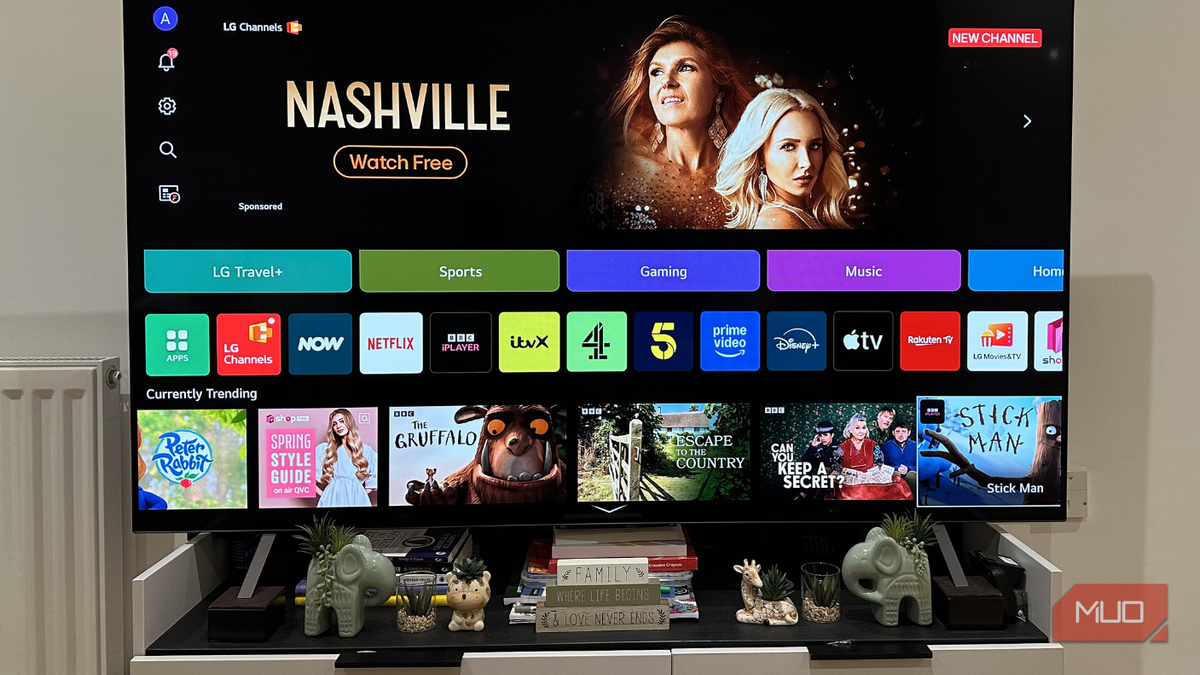
Your smart TV is essentially a data collection device that can also play Netflix and YouTube. That is not an exaggeration. By default, your smart TV tracks what you watch, constantly uses the microphone, logs your location, and builds an ad profile that gets sold to third parties. Sure, all of this is technically mentioned somewhere in the privacy policy of your TV. But if you do not want to wade through pages of legal jargon, you can take control by managing these privacy settings one by one. This guide walks you through the most critical settings to adjust on any modern smart TV.
Automatic Content Recognition: The Silent Watcher
Your TV is watching you watch TV
If there is one smart TV feature that invades your privacy more than anything else, it is ACR (Automatic Content Recognition). Almost every smart TV on the market has it, but most people do not even know about it because it works entirely in the background. What this feature does is detect what you are watching on your TV. It does not matter what streaming app you are using — your manufacturer can tell what movie or TV show is on. Heck, ACR can even identify content when you are watching cable TV, a Blu-ray disc, or gaming on your PS5.
The way ACR works is simple. It constantly captures a snapshot of whatever appears on the screen and compares it to the TV manufacturer’s database. It does this every few seconds. So yes, if something is on your screen, ACR is watching it. This profile helps the manufacturer collect data about what you watch, when you watch it, and even how long you stay on something before switching. All of this then gets sold to advertisers.
In fact, Vizio got caught doing the exact same thing back in 2017. Unfortunately, nothing has really changed even today. Samsung, LG, Sony, Fire TV, and Roku all run their own versions of ACR under different names. Samsung calls it Viewing Information Services, LG labels it Live Plus, while Fire TV has named it Automatic Content Recognition. Most importantly, all of these are enabled by default. The only good thing here is that you can disable ACR through your TV’s settings menu. On most TVs, you will find this option under Settings > Privacy or Settings > Device Preferences. Look for terms like “Viewing Data” or “Smart TV Experience” and toggle them off. Doing so stops the constant screen monitoring and data collection.
Microphone, Camera, and Location: Unnecessary Access
Less access means less data collection
Let’s be honest. Your TV is just a display, and its main job is to show you content. So why would you ever want to give it 24/7 access to a microphone, camera, and location? I get it, microphone access is kind of necessary if you want to use the built-in voice assistants or voice search. But the privacy trade-off is huge because your TV is always listening. And that is not a conspiracy theory — that is just how always-on detection works. Personally, I would rather give up on voice input and the built-in voice assistant for peace of mind.
Cameras are less common on TVs, and even if your TV has one, you probably do not use it often. Most of the time, it just sits there facing the couch, which means it is better to only enable the camera when you need it. So if the TV has a physical shutter for the camera, use it. If it does not, a piece of electrical tape will work just as well. It may not look elegant, but it is certainly effective.
Finally, location access is one that gets me the most because it is the least useful. It is not like I am watching the weather or using maps on my TV. In many cases, manufacturers use this location data to get a rough idea of where you live and show ads accordingly. You can disable access to all three of these by heading to Settings > Privacy on most TVs. On Android TV devices, you can also go to Settings > Device Preferences > Google Assistant to turn off microphone access specifically. For voice search, consider using the remote’s physical button only when needed rather than leaving the mic always on.
Advertising ID and Private DNS: Additional Privacy Steps
Not the most exciting settings, but still important
Every smart TV gets assigned an advertising ID. It is basically a unique identifier that advertisers and ad networks use to track your device across apps and build a profile on you. You can reset this advertising ID to force your TV to generate a new one. This will also erase all the data that has been collected so far. To do this on an Android TV, head to Settings > Privacy > Ads, and choose Reset advertising ID. On other platforms like Roku or Fire TV, look for “Advertising ID” or “Interest-Based Ads” settings and reset or limit ad tracking.
The private DNS is a different kind of privacy fix. By default, your TV uses the DNS server assigned by your ISP. That means your ISP can see every domain your TV tries to reach, every ad server it pings, every analytics endpoint it phones home to, all of it. Switching to a third-party DNS like Cloudflare or Quad9 takes that visibility away from your ISP. It is not just about privacy, either. Some DNS providers can even help you unlock geo-restricted content, while some offer ad-blocking. To change DNS servers on your Android TV, head to Settings > Network & Internet > Wi-Fi or Ethernet > IP settings and choose Static. Leave IP address and Gateway as they are and enter your preferred DNS addresses in DNS 1 and DNS 2 fields. On other smart TV platforms, you may need to configure DNS at the router level for the entire home network.
Beyond these core steps, consider reviewing app permissions on your TV. Just like on a smartphone, each app can request access to microphone, camera, storage, and location. Deny any permissions that are not essential for that app’s function. Also, keep your TV’s firmware updated to ensure you have the latest privacy patches and features. Manufacturers occasionally add new toggles or improve existing privacy controls, so periodically check the settings menu for anything new. Finally, if you want maximum privacy, consider using an external streaming device like an Apple TV or a Chromecast with Google TV, as these often have more granular privacy controls than built-in smart TV platforms. But even then, the same principles apply: review every setting, disable what you do not need, and take charge of your data.
Source: MakeUseOf News